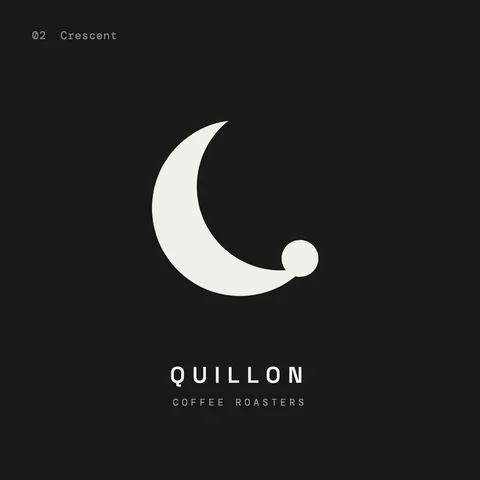
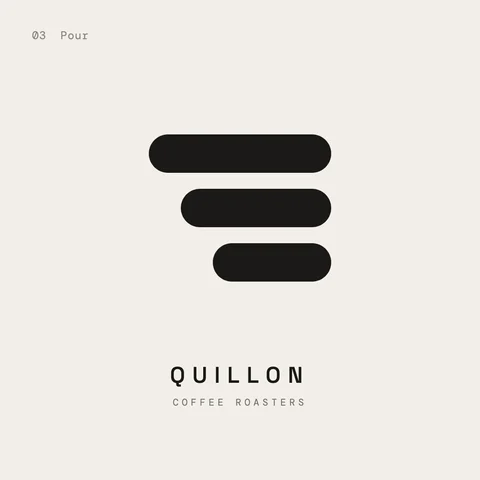
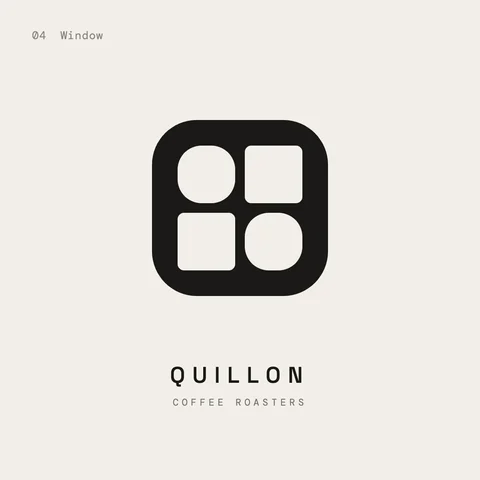
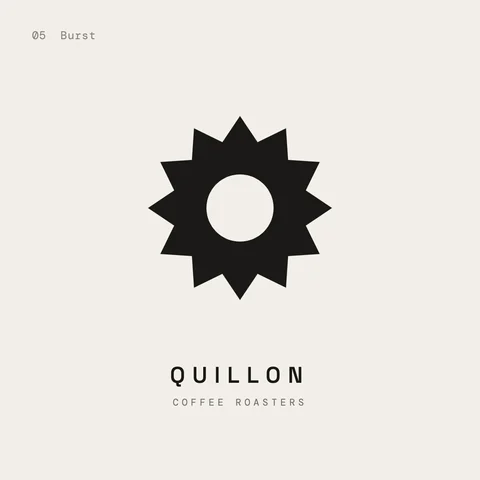
 Tino redrawing 07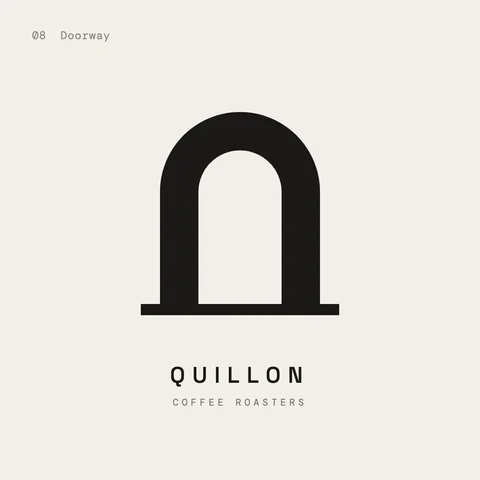
Components.
Make one from anything with ⌥⌘K, and it stays right where it is. Change the main, and every copy follows.
A studio in Tino
Logos, posters, social posts and layouts, made with Tino beside you. Ask for twelve logo directions, or pick up the pen yourself. It’s the same file either way.
Free during launch. For Mac.
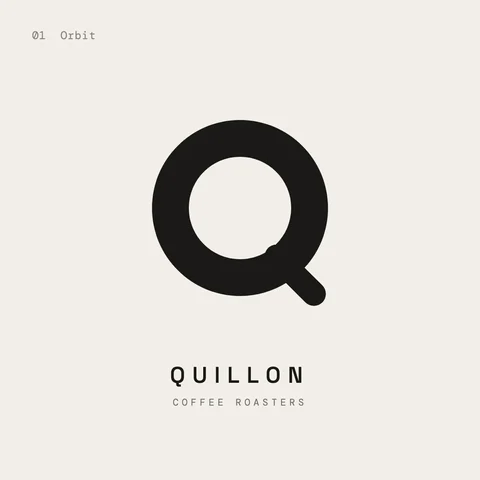
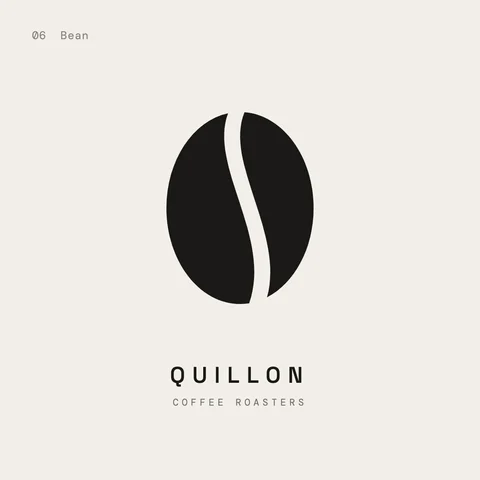
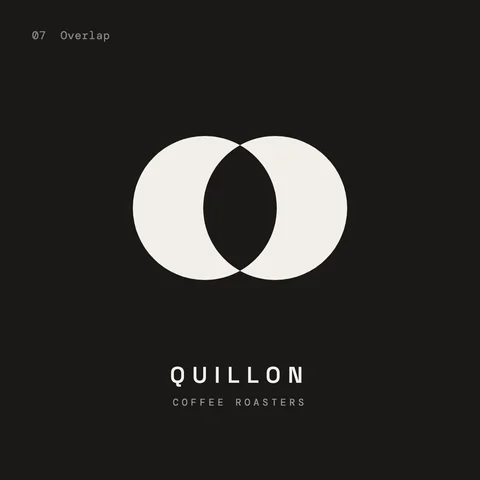
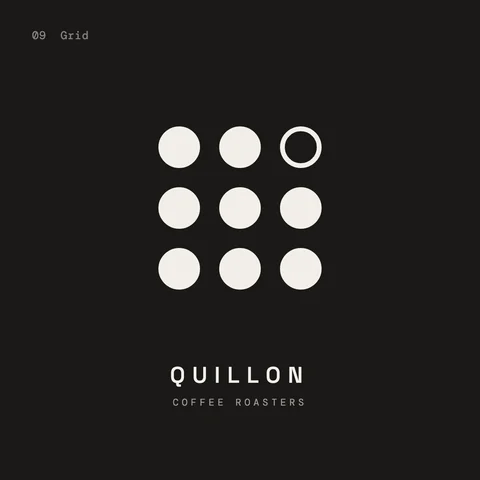
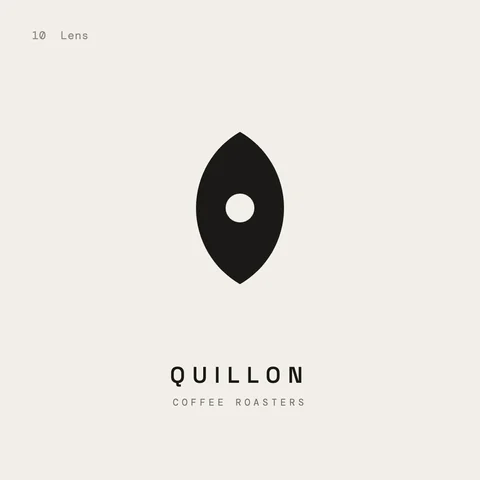
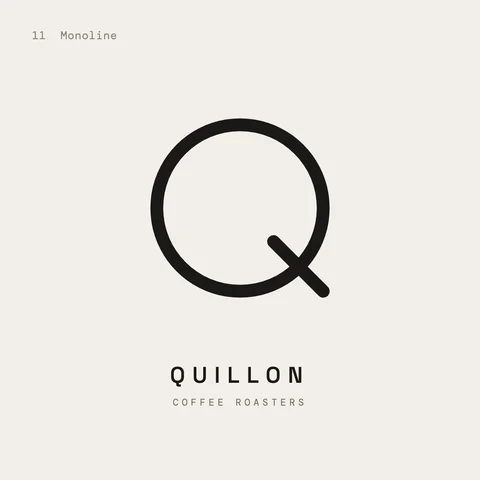
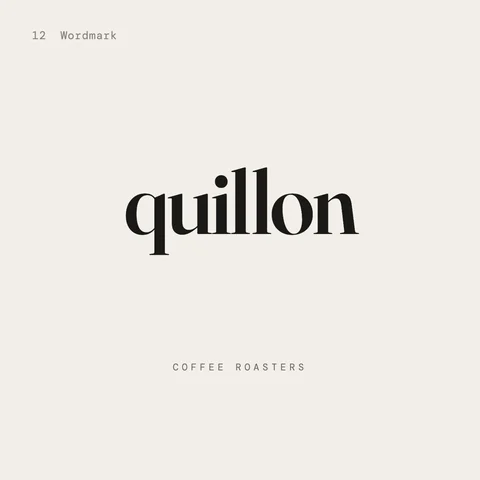
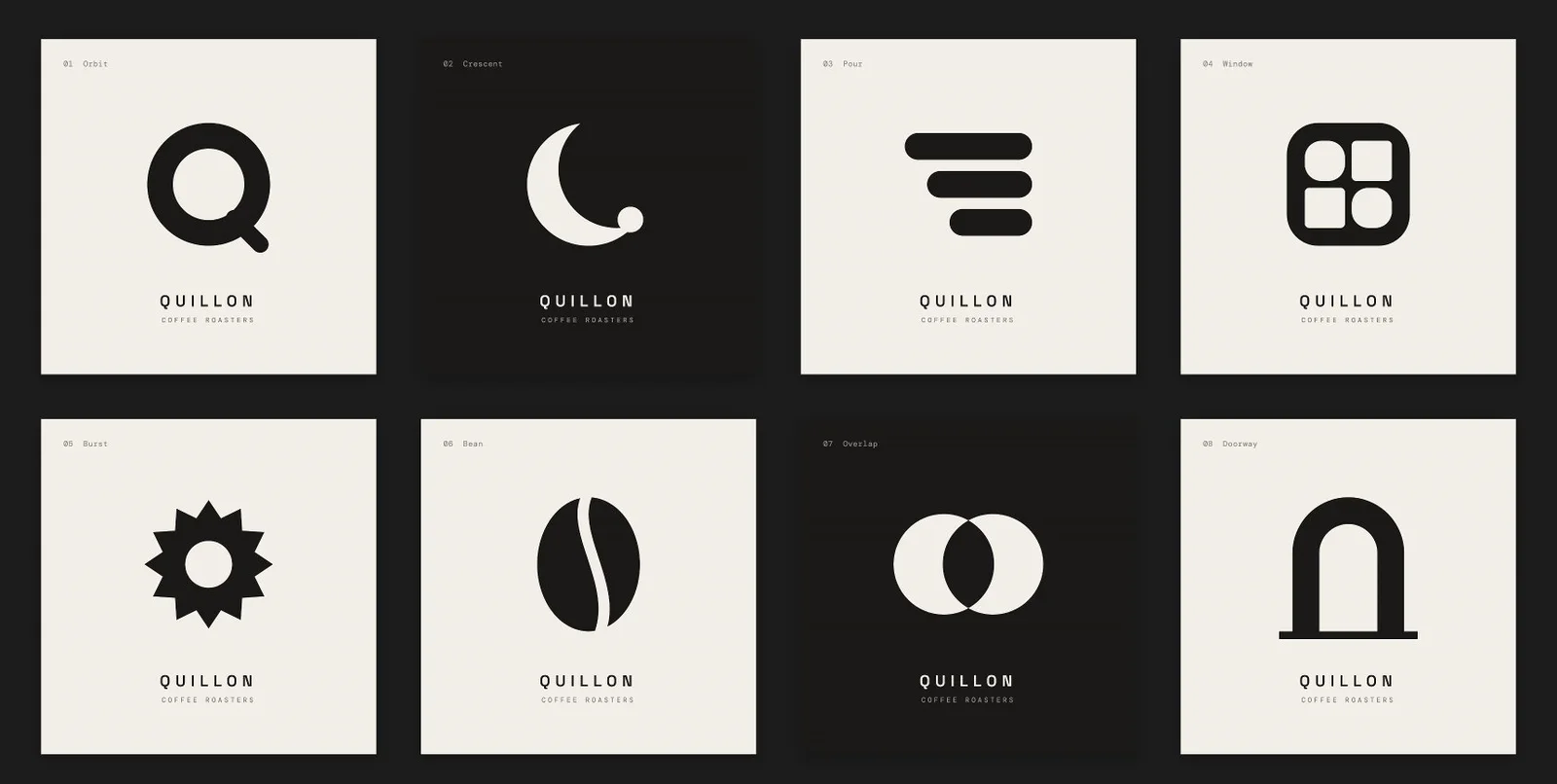
The Design studio in Vibe mode. On the canvas, twelve logo directions for Quillon, a coffee roaster, each on its own square frame. Tino’s pink dot sits on direction 7 while it redraws it. Beside the canvas, the conversation: the ask for twelve directions, Tino’s reply, and a second ask waiting its turn.
Tino in the file
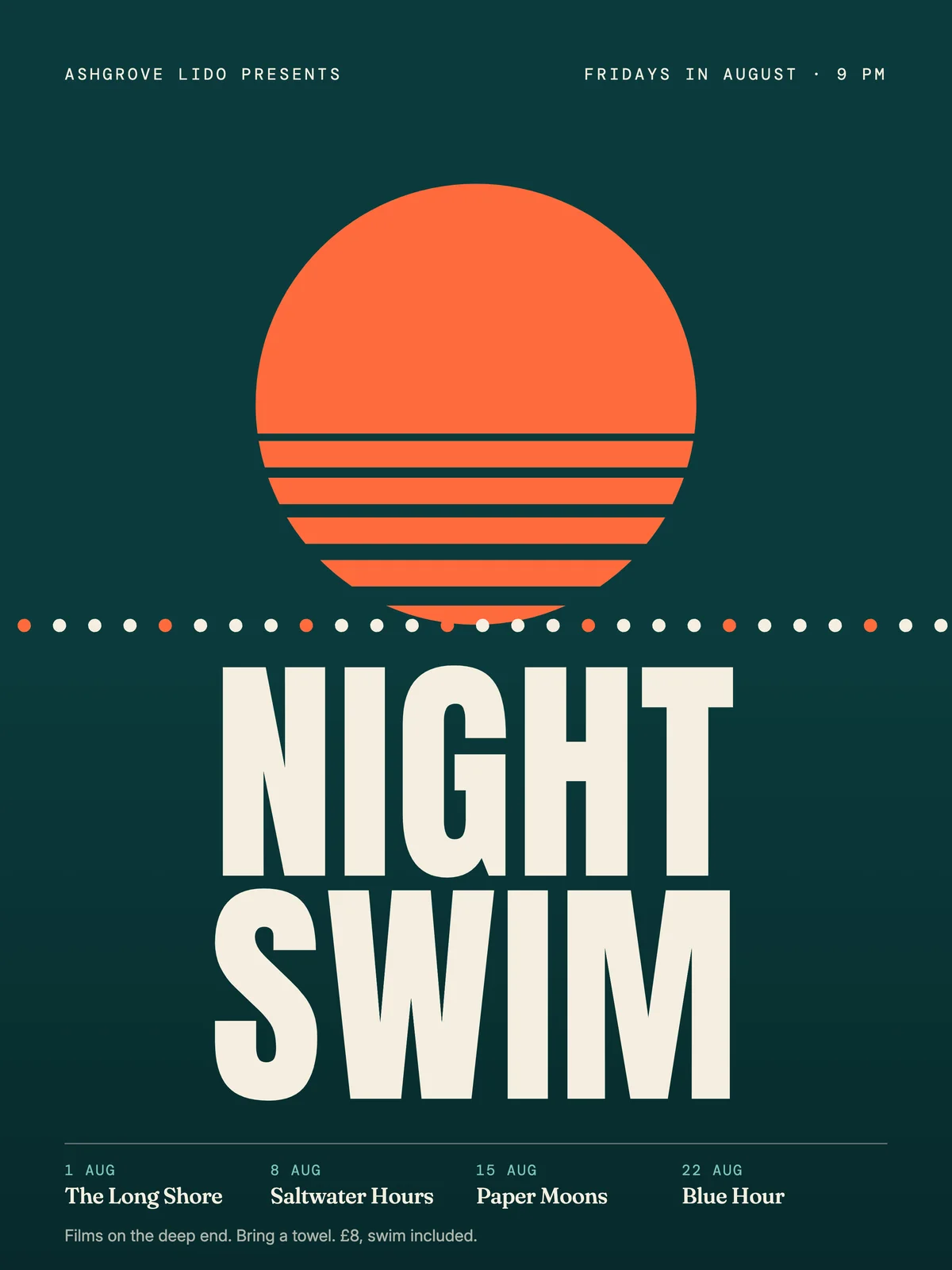
A poster for Night Swim, an outdoor cinema at a lido, on the Design canvas. Tino’s pink dot moves from the sun to the headline to the dates, with a small label saying what it’s doing at each. A pill at the top reads Following Tino.
Tino shows up in the file like a person: a small pink dot, and a quiet label saying what it’s doing.
Click Tino in the toolbar to follow it and watch over its shoulder. Press Esc and get back to your own frame.
Send the next thing while it works. Your asks line up in a queue you can see, and Tino takes them in order.
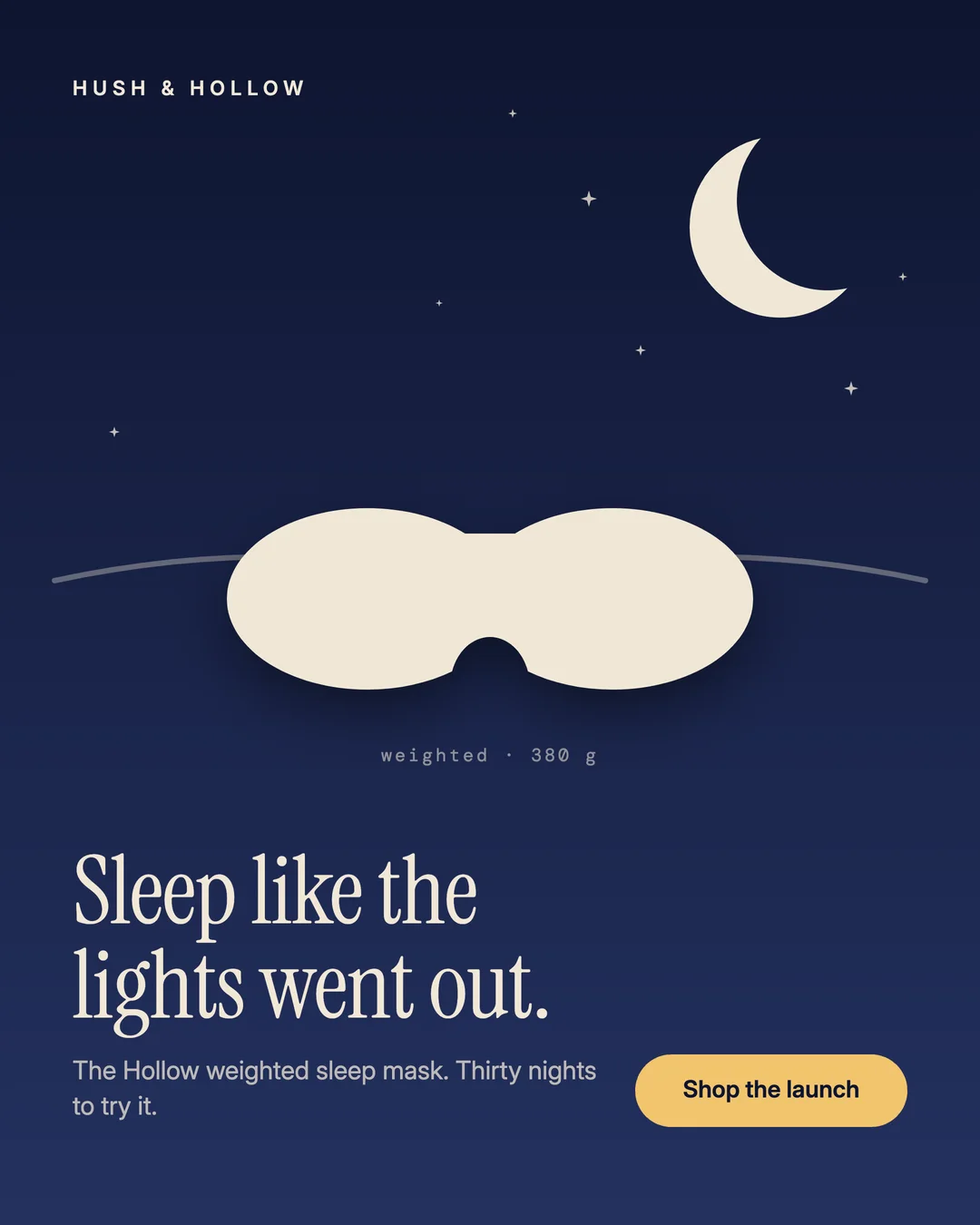
The Design studio on a 4:5 ad for Hush & Hollow, a sleep mask. In Vibe, the ad fills the canvas with your note pinned on the moon and the conversation beside it. In Pro, the same window gains the tools along the top, the pages and layers on the left and the inspector on the right, with the moon selected and its bezier points showing.
Describe what you want. Tino lays it out, looks at its own work and fixes what’s weak. Pin a note on the canvas to steer it.
A full vector canvas: frames, the pen and pencil with real bezier editing, layers, an inspector. Same file, switch any time.
Make one from anything with ⌥⌘K, and it stays right where it is. Change the main, and every copy follows.
A brand kit opens as a design file, with boards for its logos, colours, type, pieces and voice. Its colours and type become styles in everything you make.
When the brand changes, designs that use it show Update. One click brings them in line, and you can always undo it.
Carousel frames
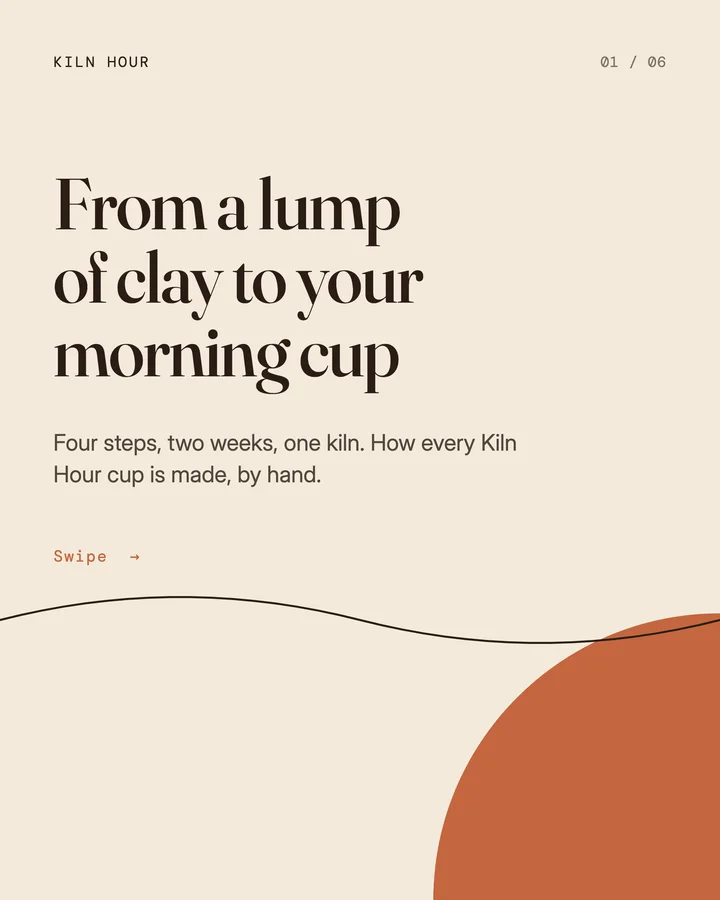
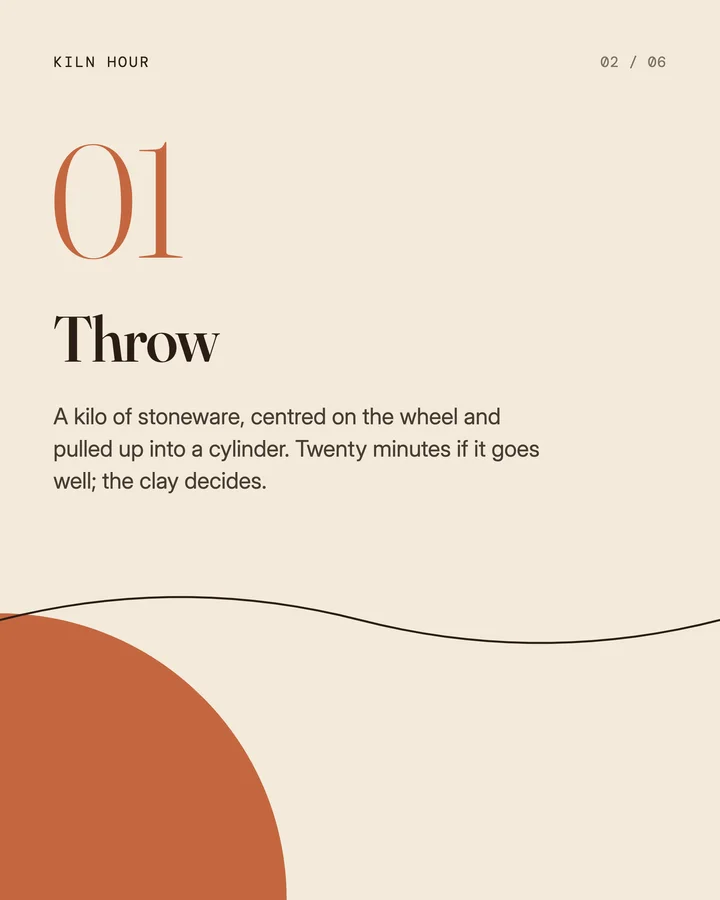
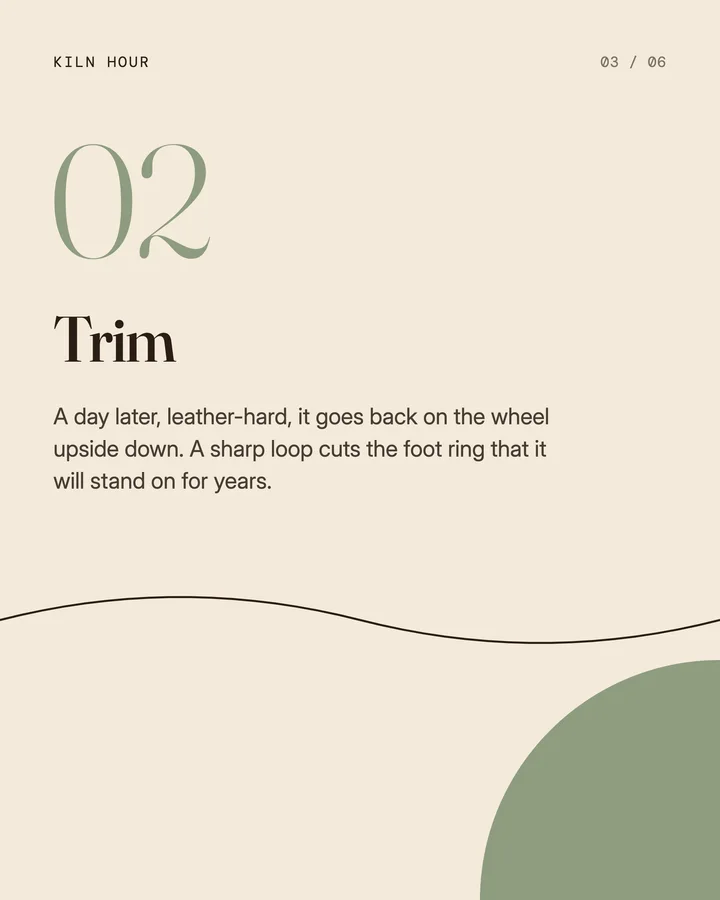
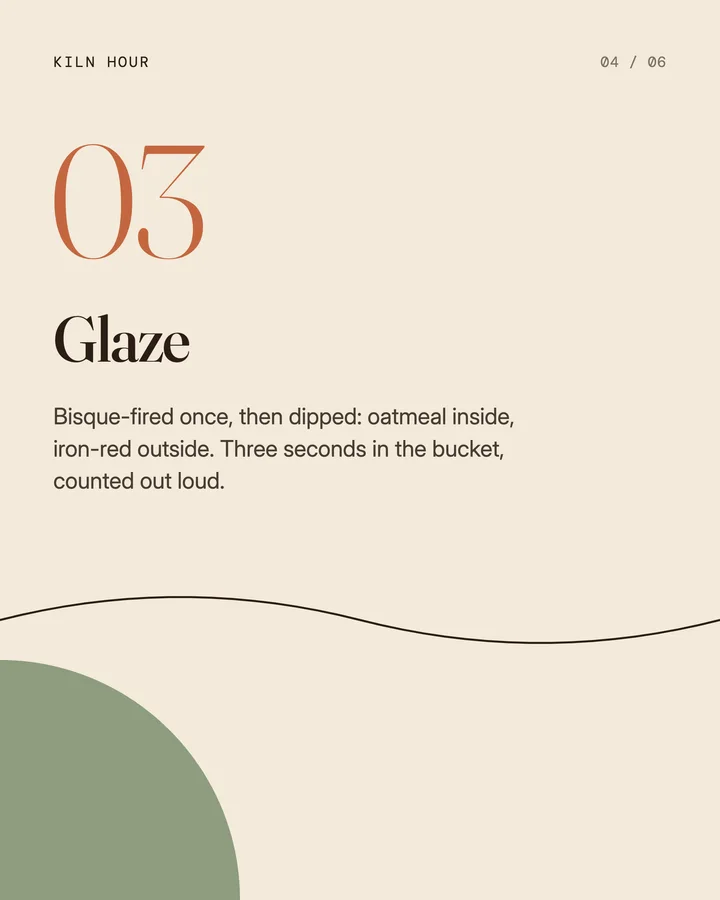
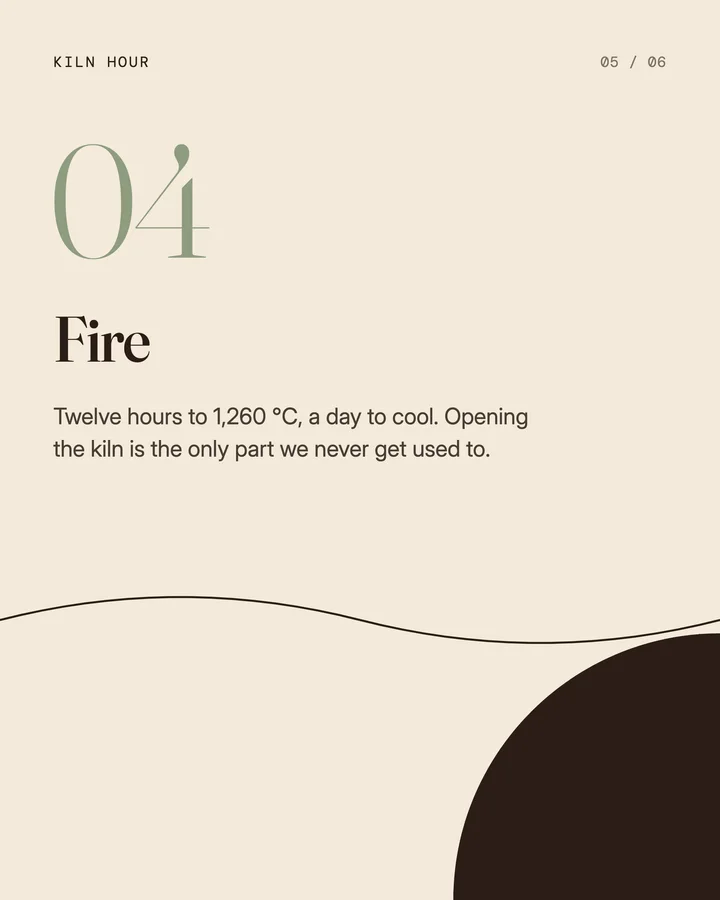
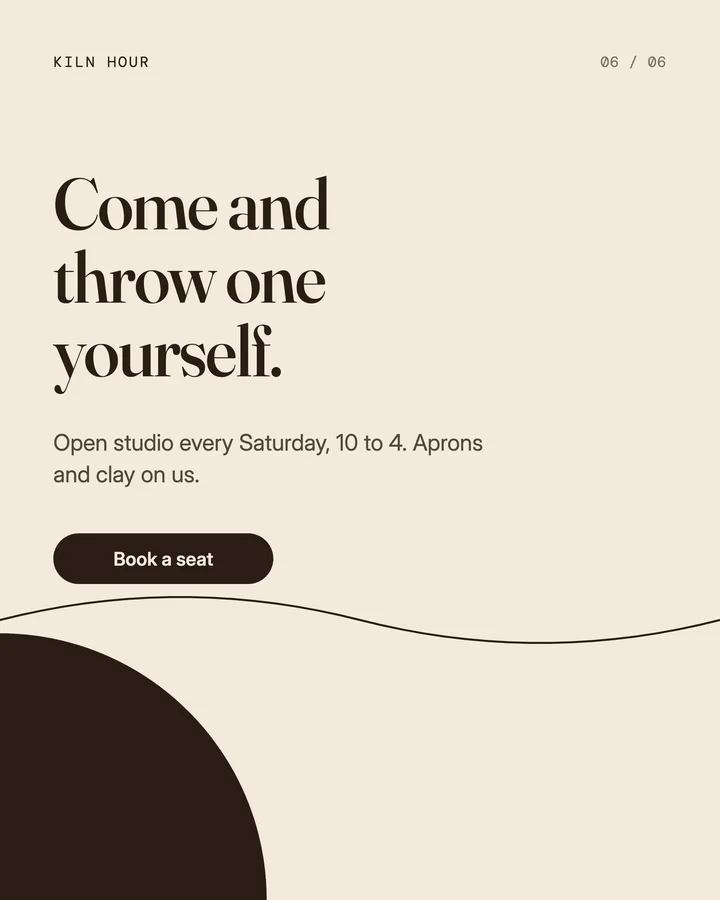
Give a frame slices in the inspector, or start from a carousel size. Export gives you each slice as its own image, so the artwork runs straight across an Instagram carousel.
A six-part carousel for Kiln Hour, a pottery studio: one long cream frame with a wavy line and coloured circles running across it, which splits into six separate posts with the line still meeting from one to the next.
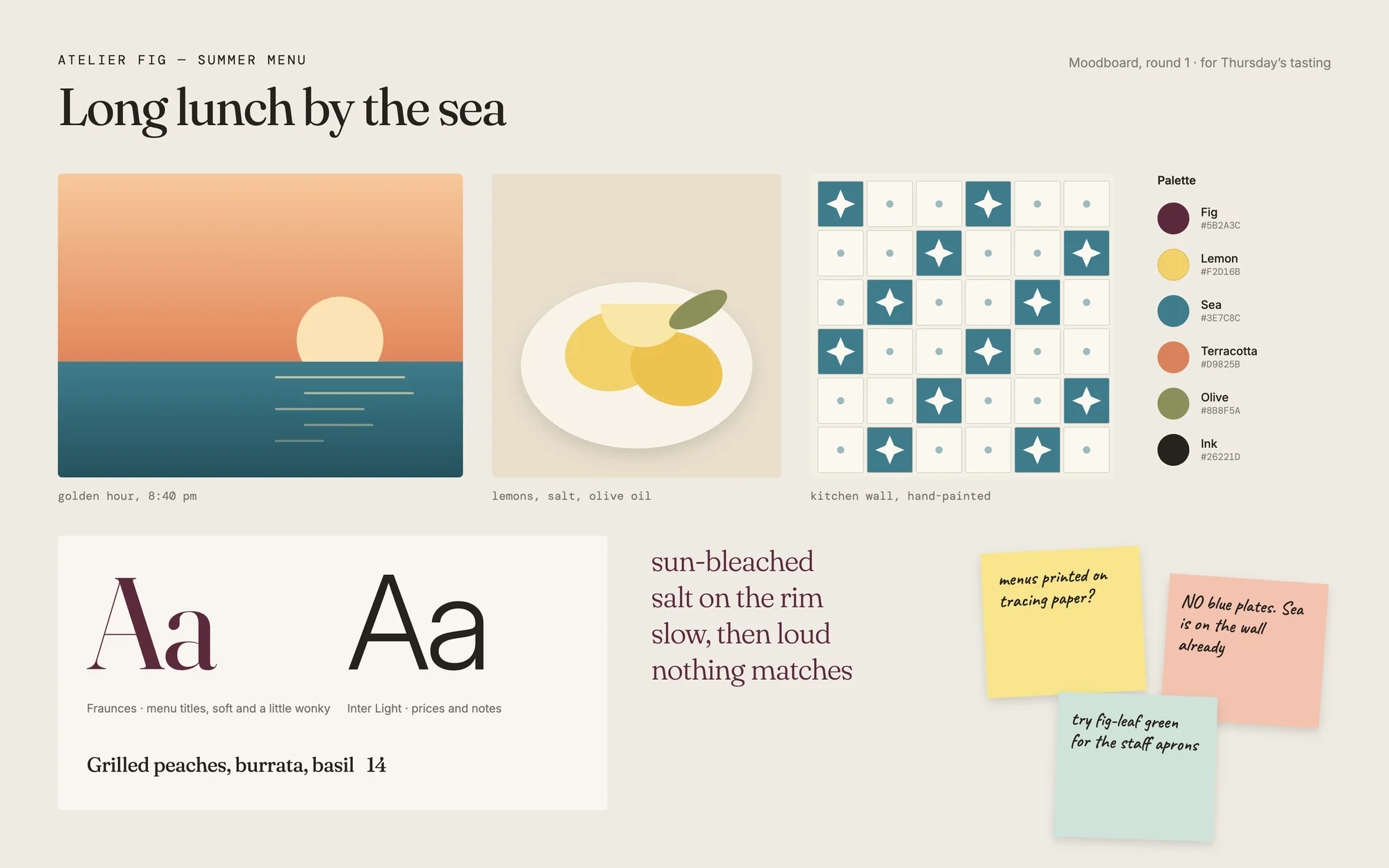
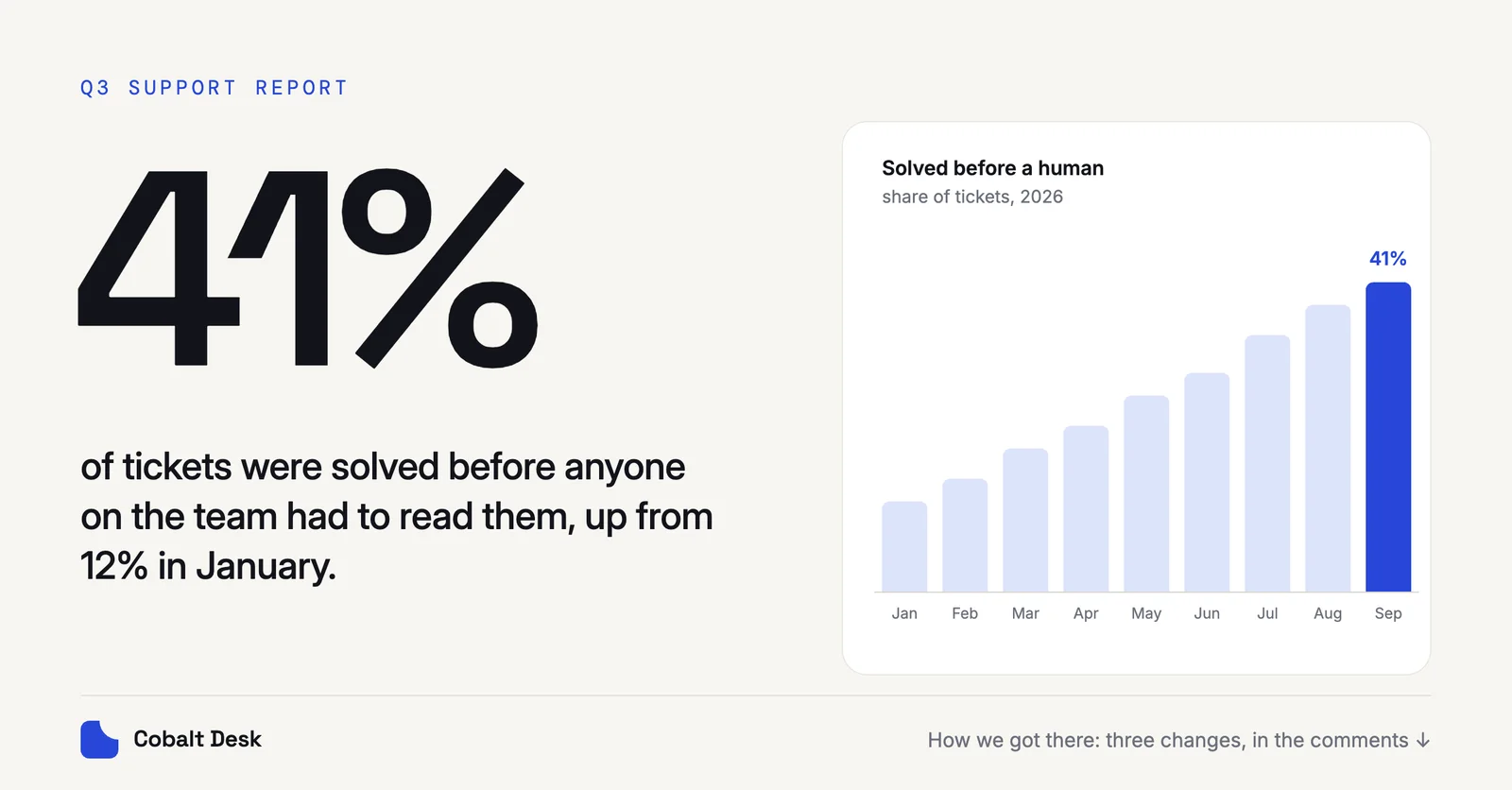
A few of the examples you can start from in Inspiration. Every brand in them is invented.
Draw freely, then edit every curve with real bezier points.
Union, subtract, intersect and exclude. Mask anything with anything.
Rich text in Tino’s typefaces, your Mac’s fonts or your brand kit’s. Turn it into outlines when the logo’s done.
Several fills and strokes on one shape, image fills, shadows and blurs.
Rulers and guides, smart guides and snapping, so things line up.
The whole design as a tree: name it, group it, lock it, hide it.
Its colours and type, ready as styles in every design.
Brand kitsPNG, JPG, SVG or PDF at 1× to 3×, every frame at once. ⇧⌘C copies as a PNG.
Inspiration has designs to begin from. Or just ask on Home.